
How to Install Go on Raspberry Pi (Latest Version Guide)
0

!!This post contains Amazon affiliate links. If you buy through them, TechZado may earn a small commission at no extra cost to you.
I was struggling so hard to get the right stable and latest version installed on my Raspberry Pi, and I faced many errors and difficulties. Finally, I found the easiest way to install Go on Raspberry Pi and thought to share it with you all. In this guide you will install the latest official Go (Golang) release on Raspberry Pi OS, set up your PATH, run your first program and fix the most common errors.
Quick Answer: How to Install Go on Raspberry Pi
Here is the short version. Each step is explained in detail below.
- Check your system type with
dpkg --print-architecture(arm64orarmhf). - Download the matching Linux ARM file from go.dev/dl (
linux-arm64orlinux-armv6l). - Extract it to
/usr/localwithsudo tar -C /usr/local -xzf. - Add
/usr/local/go/binto your PATH in~/.profile. - Run
go versionto confirm the installation.
Why Not Just Use apt install golang-go?
Raspberry Pi OS can install Go with sudo apt install golang-go, but the version in the Debian repositories is usually well behind the latest release. For example, Debian 13 (Trixie), which current Raspberry Pi OS is based on, ships Go 1.24, while the latest release on go.dev at the time of writing is Go 1.27.2. Many modern Go projects ask for a newer version in their go.mod file, so the official download from go.dev is the better choice. It is also exactly the method the Go team documents for Linux.
What You Need Before You Start
- A Raspberry Pi: any model works, from the Pi Zero to the latest board. For the smoothest experience, especially if you plan to compile bigger projects, a Raspberry Pi 5 (4GB) is a great choice.
- A microSD card with Raspberry Pi OS: a fast microSD card of 32 GB or more, such as the SanDisk Extreme 64GB microSD card, gives you room for Go, its module cache and your projects.
- A good power supply: for the Raspberry Pi 5, use the official 27W USB-C power supply.
- Cooling: compiling keeps the CPU busy, so the official Raspberry Pi Active Cooler for the Pi 5 helps keep it from slowing down when it gets hot.
- An internet connection and a terminal, either on the Pi itself or over SSH.
Step 1: Update Raspberry Pi OS
If you haven’t set up your card yet, flash Raspberry Pi OS with the official Raspberry Pi Imager first. Then open a terminal and bring the system up to date:
sudo apt update
sudo apt full-upgrade -y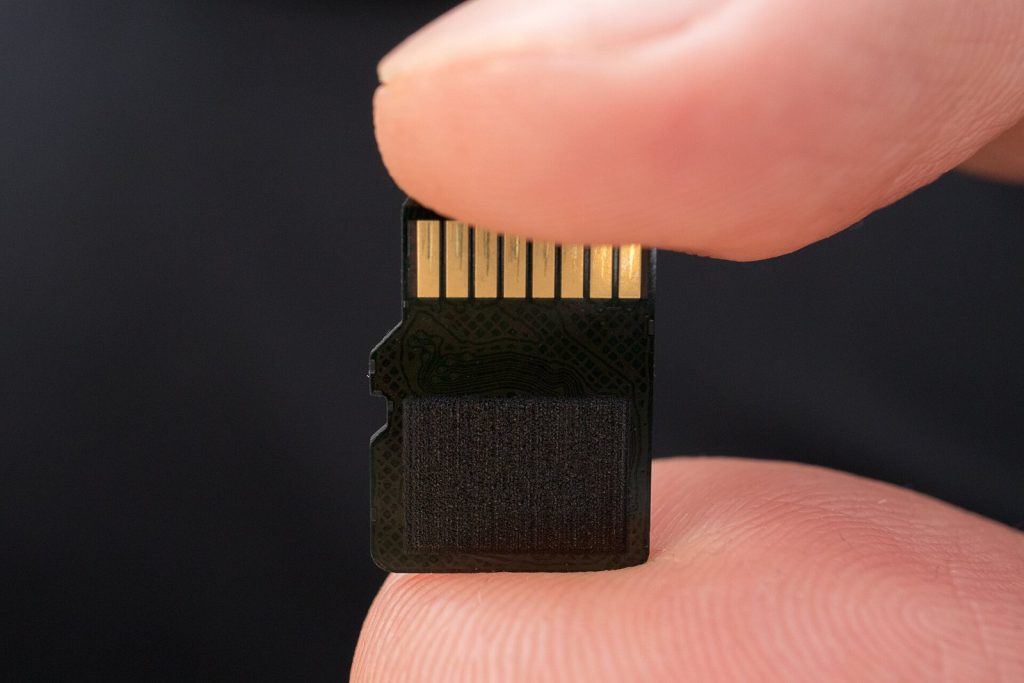
Step 2: Check if Your Raspberry Pi OS Is 32-bit or 64-bit
This is the step where most people go wrong. Go offers two Linux ARM downloads, and you must pick the one that matches your operating system, not just your board. Run:
dpkg --print-architecture- arm64 means you are on 64-bit Raspberry Pi OS. Use the
linux-arm64download. - armhf means you are on 32-bit Raspberry Pi OS. Use the
linux-armv6ldownload. It works on every 32-bit Pi, including the Pi Zero and Pi 1.
You can also run uname -m, but be careful: on some boards the 32-bit OS runs with a 64-bit kernel, so uname -m shows aarch64 while the programs are still 32-bit. That is why dpkg --print-architecture is the more reliable check.
Step 3: Download the Latest Go Release for Raspberry Pi
Open go.dev/dl and look for the latest stable version. At the time of writing that is Go 1.27.2, so the commands below use it. If a newer version is listed, just change the number.
For 64-bit Raspberry Pi OS (arm64):
cd ~
wget https://go.dev/dl/go1.27.2.linux-arm64.tar.gz
For 32-bit Raspberry Pi OS (armhf):
cd ~
wget https://go.dev/dl/go1.27.2.linux-armv6l.tar.gz
Optionally, check that the download isn’t corrupted. Run sha256sum on the file and compare the result with the SHA256 checksum shown next to the file on go.dev/dl:
sha256sum go1.27.2.linux-arm64.tar.gzStep 4: Install Go on Raspberry Pi
Now extract the archive to /usr/local. The first part of the command removes any older Go that was installed this way, which is what the official instructions recommend. Never extract a new version on top of an old one, as that can leave a broken installation.
sudo rm -rf /usr/local/go && sudo tar -C /usr/local -xzf go1.27.2.linux-arm64.tar.gzUse the linux-armv6l file name instead if you are on 32-bit Raspberry Pi OS.
Step 5: Add Go to Your PATH
Your shell doesn’t know where Go is yet. Add the Go folder (and the folder where go install puts tools) to your PATH by adding one line to ~/.profile:
echo 'export PATH=$PATH:/usr/local/go/bin:$HOME/go/bin' >> ~/.profile
source ~/.profile
The source command applies the change to the current terminal. New terminals pick it up after you log out and back in (or reboot).
Step 6: Check the Go Version
Confirm that Go is installed correctly:
go versionYou should see something like go version go1.27.2 linux/arm64 (or linux/arm on 32-bit). If you do, congrats, Go is ready on your Raspberry Pi.
Step 7: Write Your First Go Program on Raspberry Pi
Let’s make sure everything really works by building a small “Hello” program. Create a project folder and a Go module:
mkdir ~/hello && cd ~/hello
go mod init example.com/hello
Create a file called hello.go:
nano hello.goPaste in this code, then save with CTRL + X, Y and ENTER:
package main

import "fmt"

func main() {
    fmt.Println("Hello from Go on Raspberry Pi!")
}
Run it:
go run .To build a standalone program that you can run without Go, use go build and start the file it creates:
go build
./hello
How to Update Go on Raspberry Pi
To update, download the newer file from go.dev/dl and run the same install command from Step 4 with the new file name. It removes the old version and puts the new one in its place, and your PATH stays the same.
Also good to know: since Go 1.21, when a project’s go.mod asks for a newer Go version than the one you have, the go command can download that toolchain automatically (controlled by the GOTOOLCHAIN setting). It is still a good idea to keep your main installation reasonably up to date.
How to Uninstall Go
If you want to remove Go completely:
go clean -modcache
sudo rm -rf /usr/local/go
rm -rf ~/go
Run go clean -modcache first, while Go is still installed. The module cache files are read-only, which is why a plain rm -rf ~/go can fail with “permission denied” otherwise. Finally, open ~/.profile and delete the export PATH=...go... line you added.
Troubleshooting Go Installation on Raspberry Pi
“go: command not found”
Go is installed but your PATH doesn’t include it. Check that the line from Step 5 is in ~/.profile, then run source ~/.profile or log out and back in. You can test the binary directly with /usr/local/go/bin/go version.
“cannot execute binary file: Exec format error”
You downloaded the wrong file for your system, for example the arm64 version on 32-bit Raspberry Pi OS. Run dpkg --print-architecture again, download the matching file and repeat Step 4.
go version shows an old version
You probably also have the apt package installed, and /usr/bin/go is found before /usr/local/go/bin/go. Check with which -a go. Remove the old one with sudo apt remove golang-go and open a new terminal.
Builds are slow or run out of memory on a Pi Zero
Go runs fine on small boards, but compiling big projects on a board with 512 MB of RAM can be slow or fail. Two easy fixes: increase the swap size, or build on your PC and copy the program to the Pi. Go makes cross-compiling simple. For example, for 64-bit Raspberry Pi OS:
GOOS=linux GOARCH=arm64 go buildFor a Pi Zero or Pi 1 on 32-bit Raspberry Pi OS, use GOOS=linux GOARCH=arm GOARM=6 go build.
Frequently Asked Questions About Installing Go on Raspberry Pi
Which Go download should I use for Raspberry Pi?
Use linux-arm64 on 64-bit Raspberry Pi OS and linux-armv6l on 32-bit Raspberry Pi OS. Check with dpkg --print-architecture.
Can I install Go on Raspberry Pi with apt?
Yes, sudo apt install golang-go works, but it installs an older version (Go 1.24 on Debian 13 based systems). For the latest version, use the official download from go.dev as shown in this guide.
Does Go work on Raspberry Pi Zero?
Yes. Use the linux-armv6l download on 32-bit Raspberry Pi OS. For larger projects, cross-compiling on a faster computer saves a lot of time.
How do I check if Go is installed on my Raspberry Pi?
Run go version. If it prints a version number, Go is installed. Use which go to see which installation is being used.
Where is Go installed on Raspberry Pi?
With this method, Go itself lives in /usr/local/go, and the module cache and tools you install with go install live in ~/go.
Wrapping Up
That’s it. To install Go on Raspberry Pi, check whether your OS is 32-bit or 64-bit, download the matching file from go.dev, extract it to /usr/local, add it to your PATH and test it with go version. Using the official release means you always have the latest Go, and updating later takes just two commands.
Now you are ready to build web servers, command-line tools and hardware projects in Go. If you also want to use a game controller in your Pi projects, check out my guide on how to connect PS3 controller with Raspberry Pi.
Related Product(s)
6 Comments

hello
You are wrong..
ggfd
yes
ok so
Lovely